
想玩Linux卻沒有多的電腦或多的硬碟空間嗎?還是怕弄壞了原有的資料?VMWare可以讓你在Windows上玩Linux喔!介紹一下VMware,簡單的說,他可以在你現有的作業系統上”再多安裝“其他作業系統,並且任你決定這個”新”系統所使用的記憶體大小、硬碟容量大小,你可以像使用一台普通電腦一樣對他做格式化、安裝作業系統等等而不會對你的原系統產生任何影響,其實還有另一套由PC Connectix所出的 Virual PC,而VMWare目前最新版本4.x,你可以到http://www.vmware.com/vmwarestore/newstore/download_login.jsp取得試用,從這邊來需要先註冊,要填一堆有的沒有的,後面是目前最新版的載點,懶的人就直接載吧,http://vmware-svca.www.conxion.com/software/VMware-workstation-4.0.0-4460.exe,未註冊版提供三十天的試用期,只需在要輸入序號那頁按”Skip”即可,當然,有註冊機可以用,但在這邊我就不提供了。
安裝過程就不囉說了…讓我們來看看主畫面
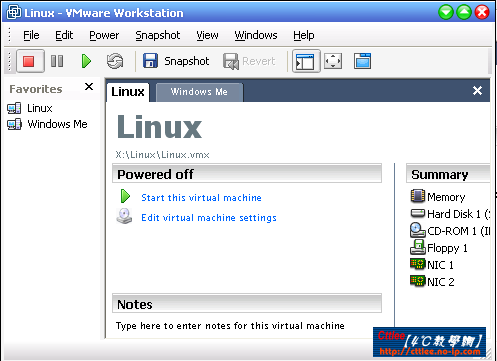
在上面的畫面顯示出有兩個虛擬的作業系統,一個是Linux另一個是Windows ME,而功能表左下方有關機、暫停、及開機的按鈕,你可以編輯每個虛擬作業系統的”硬體”設定在中間的”Edit virtual machine settings“,右邊的Summary則是目前的硬體狀態。
增加一台電腦
在Favorites的範圍內按下滑鼠右鍵會出現一個功能表,其中有個叫做New Virtual Machine..,然後~(中間跳過..)就看到下面的畫面
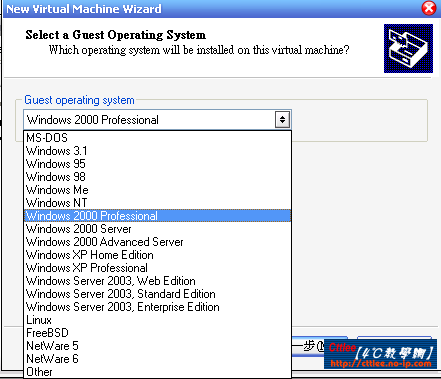
選擇一個你想安裝的系統,VMWare會依據你所選的調整系統給予的資源。
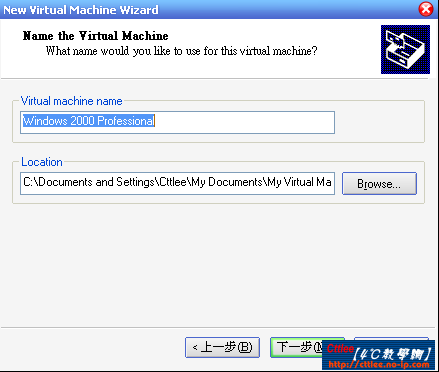
這個沒什麼好講的..改名字..改放的目錄….
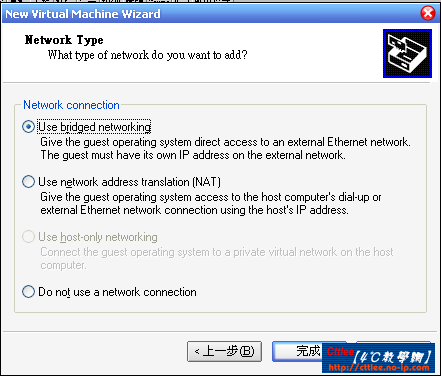
網路組態設定,選擇你要使用『Bridged』或是『NAT』簡單的說,Bridged會模擬出一張實體網卡,而NAT則是會透過主機本身連線至網路,主機扮演著類似IP分享器的角色。
好了之後你就會在主畫面裡看到剛剛新增的電腦囉,接下來簡單介紹一下設定吧。
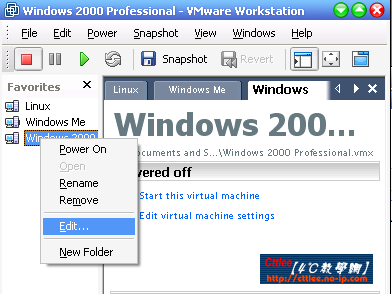
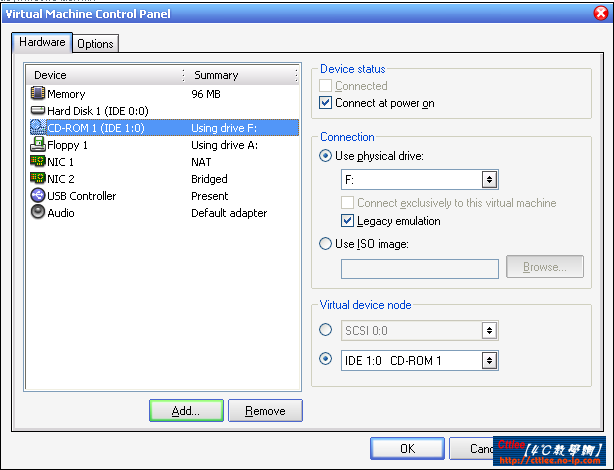
左邊是硬體類別,右邊則是可調整的選項,或你可以按Add加入一個新的硬體,預設的硬碟最大為4GB,至於光碟機你可以選擇使用實體光碟機或者是掛上ISO檔,其他的就不介紹了。
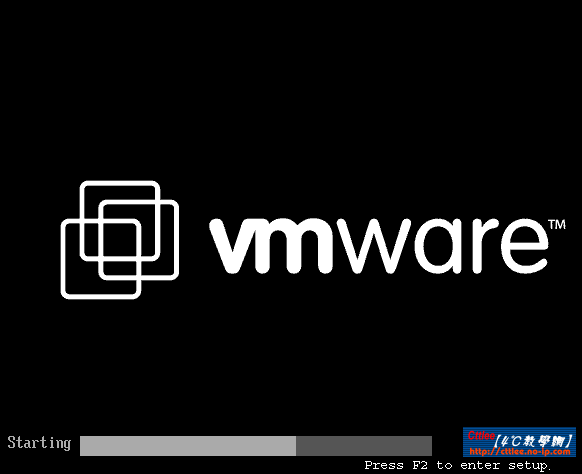
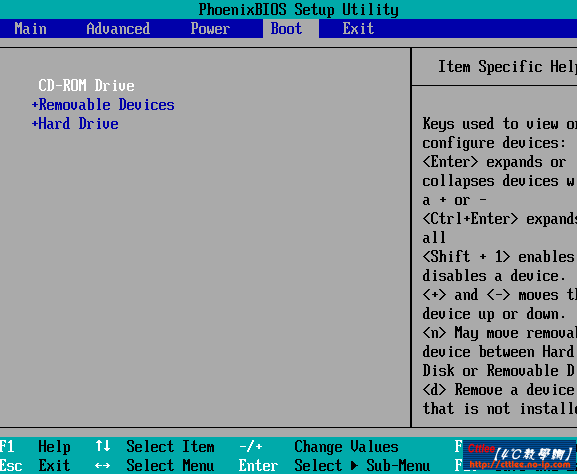
連BIOS都有了!!基本上剛設定好一個組態時跟剛裝好一台新電腦時是沒兩樣的,硬碟空的未分割等…跑個安裝Linux吧!在BIOS中將BOOT的順序調整為CD-ROM最先,將安裝光碟放入光碟機(預設光碟機使用實體光碟),然後開機。
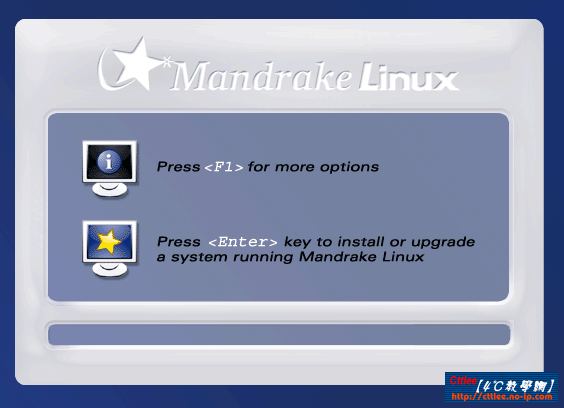
可愛的安裝畫面出來了!
安裝後續處理
想一下我們剛灌好一個新作業系統後要幹嘛,安裝驅動程式嘛!VMWare也是一樣,當我們安裝完後需要安裝一個叫”VMWare Tools“的東西
官方對VMWare Tools的解說:
It is very important that you install VMware Tools in the guest operating system.
With the VMware Tools SVGA driver installed, Workstation supports significantly faster graphics performance.
The VMware Tools package provides support required for shared folders and for drag and drop operations.
Other tools in the package support time synchronization between host and guest, automatic grabbing and releasing of the mouse cursor, copying and pasting between guest and host, and improved mouse performance in some guest operating systems.
The installers for VMware Tools for Windows, Linux and FreeBSD guest operating systems are built into VMware Workstation as ISO image files. (An ISO image file looks like a CD-ROM to your guest operating system and even appears as a CD-ROM in Windows Explorer. You do not use an actual CD-ROM to install VMware Tools, nor do you need to download the CD-ROM image or burn a physical CD-ROM of this image file.)
VMware Tools for Windows supports Windows 95, Windows 98, Windows Me, Windows NT 4.0, Windows 2000, Windows XP and Windows Server 2003 guest operating systems.
在Windows系列中,只需在進入作業系統後選擇”File-Install VMWare Tools...”,然後去查看你的光碟機,執行裡面的安裝程式即可,而Linux可以下面的方式來進行。
擷取自說明
VMware Tools for Linux Guests
Power on the virtual machine.
After the guest operating system has started, prepare your virtual machine to install VMware Tools.
Choose File > Install VMware Tools.
The remaining steps take place inside the virtual machine.
Be sure the guest operating system is running in text mode. You cannot install VMware Tools while X is running.
As root (su -), mount the VMware Tools virtual CD-ROM image, change to a working directory (for example, /tmp), uncompress the installer, then unmount the CD-ROM image.
Note: You do not use an actual CD-ROM to install VMware Tools, nor do you need to download the CD-ROM image or burn a physical CD-ROM of this image file. The VMware Workstation software contains an ISO image that looks like a CD-ROM to your guest operating system. This image contains all the files needed to install VMware Tools in your guest operating system.
Note: Some Linux distributions use different device names or organize the
/dev directory differently. If your CD-ROM drive is not /dev/cdrom, modify the following commands to reflect the conventions used by your distribution.
mount -t iso9660 /dev/cdrom /mnt
cd /tmp
tar zxf /mnt/vmware-linux-tools.tar.gz
umount /mnt
Run the VMware Tools installer.
cd vmware-tools-distrib
./vmware-install.pl
Log out of the root account.
exit
Start X and your graphical environment.
In an X terminal, launch the VMware Tools background application.
vmware-toolbox &
Note: You may run VMware Tools as root or as a normal user. To shrink virtual disks, you must run VMware Tools as root (su -).
差不多了,就到這邊吧,花了大概一個小時..我要去吃晚飯了 :)!Bye!
在〈虛擬電腦 VMWare〉中有 1 則留言